Getting Started
Transform your PDF question papers into interactive Computer-Based Tests in minutes with AI-powered extraction
Fast Setup
Get started in under 5 minutes
AI-Powered
Automatic question extraction
Easy to Use
No technical knowledge required
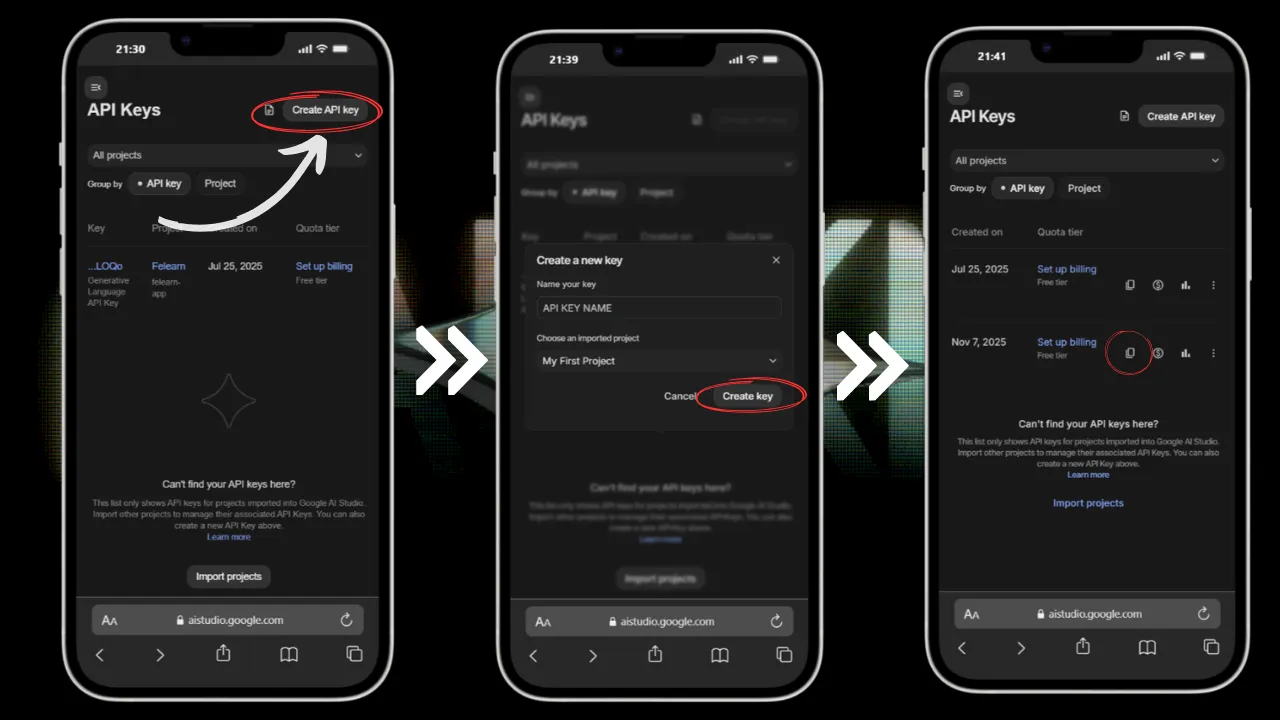
Get Your Gemini API Key
First, you'll need a free API key from Google AI Studio to power the AI extraction.
Steps to Get API Key:
- Visit Google AI Studio
- Sign in with your Google account
- Click "Get API Key" or "Create API Key"
- Copy your API key (starts with "AIzaSy...")
- Keep it safe - you'll need it in the next step
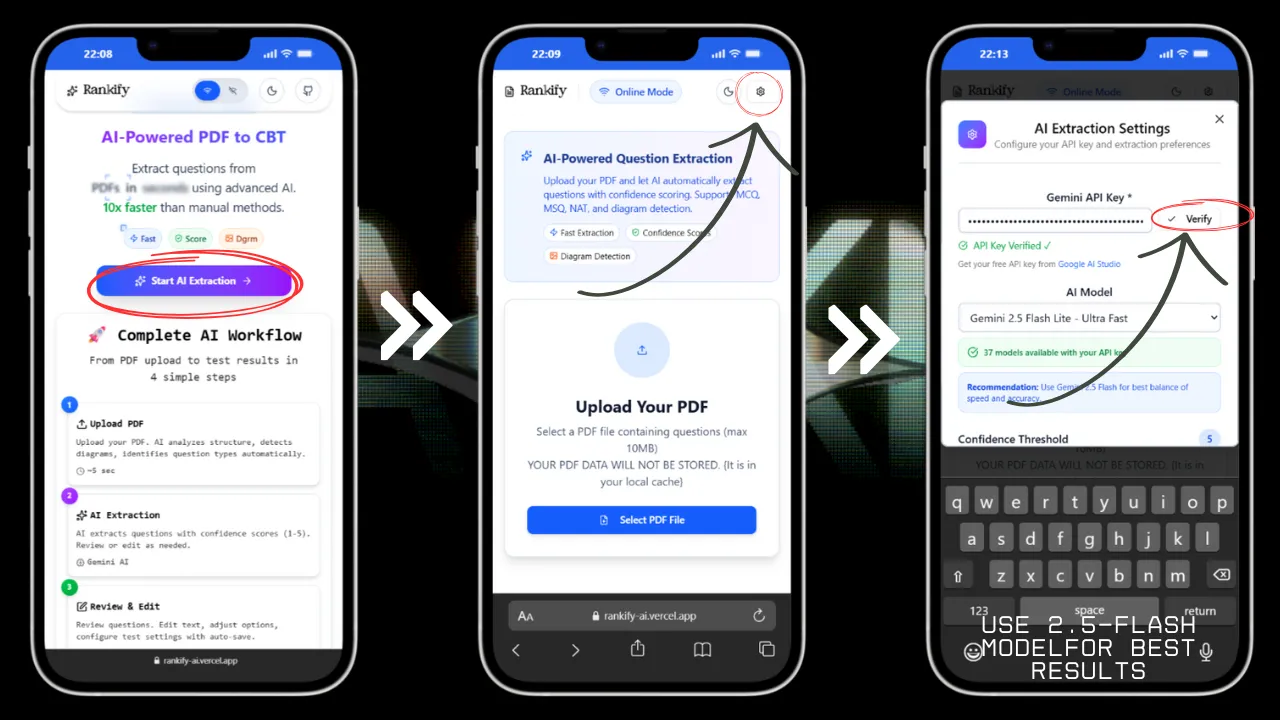
Upload Your PDF Question Paper
Navigate to the AI Extractor page and configure your extraction settings.
Configuration Steps:
- Go to the AI Extractor page from the home screen
- Paste your Gemini API key in the "API Key" field
- Select your preferred AI model (Gemini 2.5-flash recommended for speed)
- Enable caching for faster repeated extractions (optional)
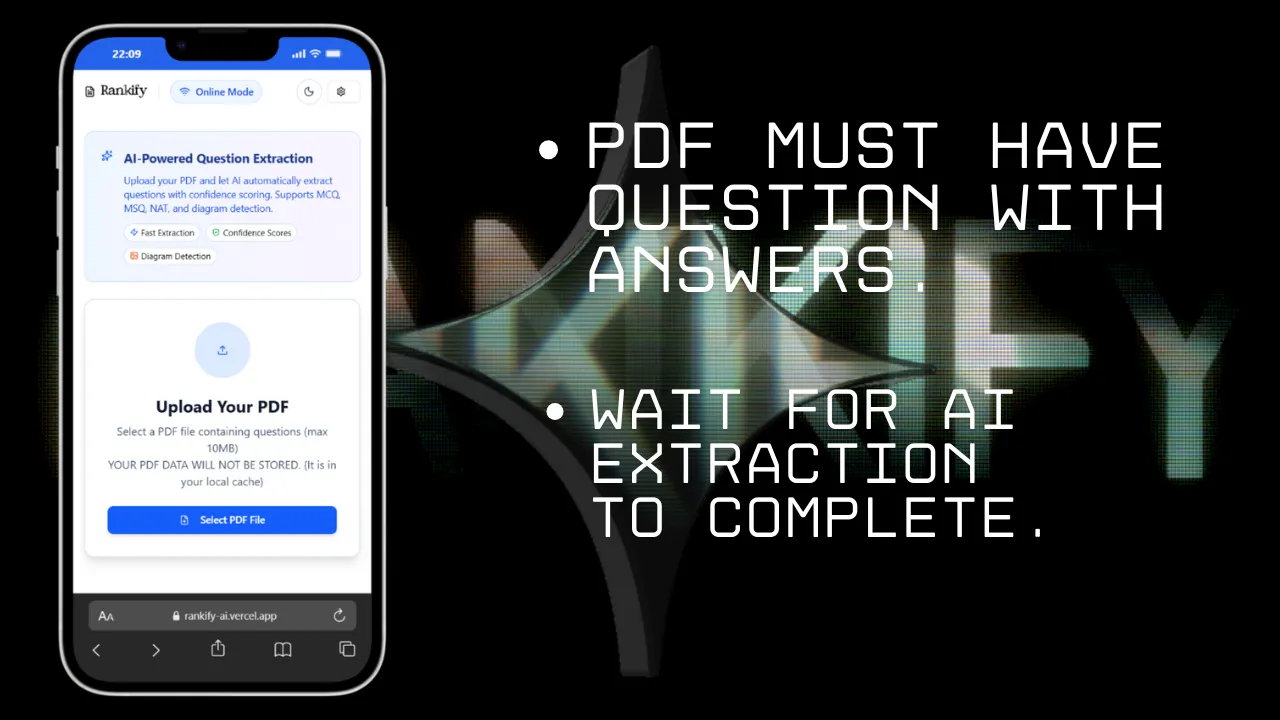
Select PDF File(s)
Upload one or multiple PDF files containing your questions.
File Upload Options:
- Single PDF: Click "Select PDF" to upload one file
- Supported Content: Text PDFs, scanned PDFs, PDFs with diagrams, DPPs of coachings, etc.
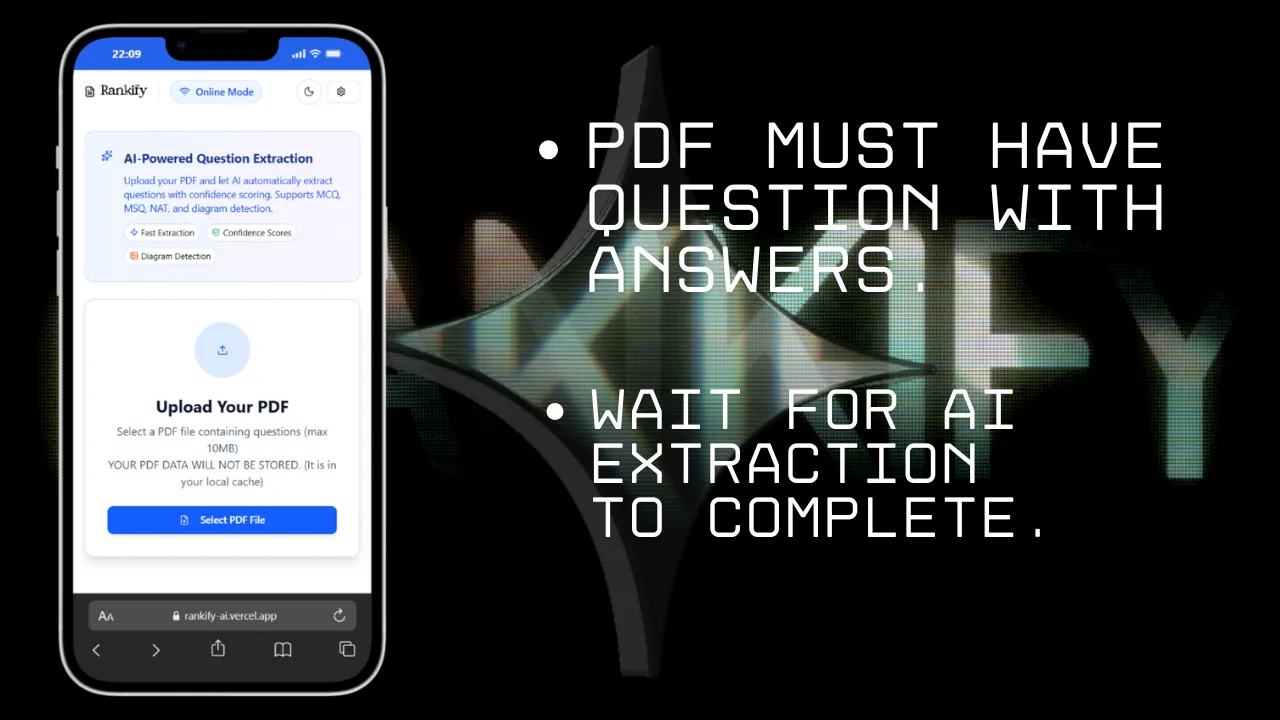
Extract Questions with AI
Click "Extract Questions" and watch the AI analyze your PDF in real-time.
Extraction Process:
- Initializing: Preparing PDF for processing
- Processing PDF: Analyzing document structure
- AI Extraction: AI extracts questions, options, and answers
- Validating: Checking extraction quality and confidence scores
- Storing: Saving results for review
- Completed: Ready for review and editing
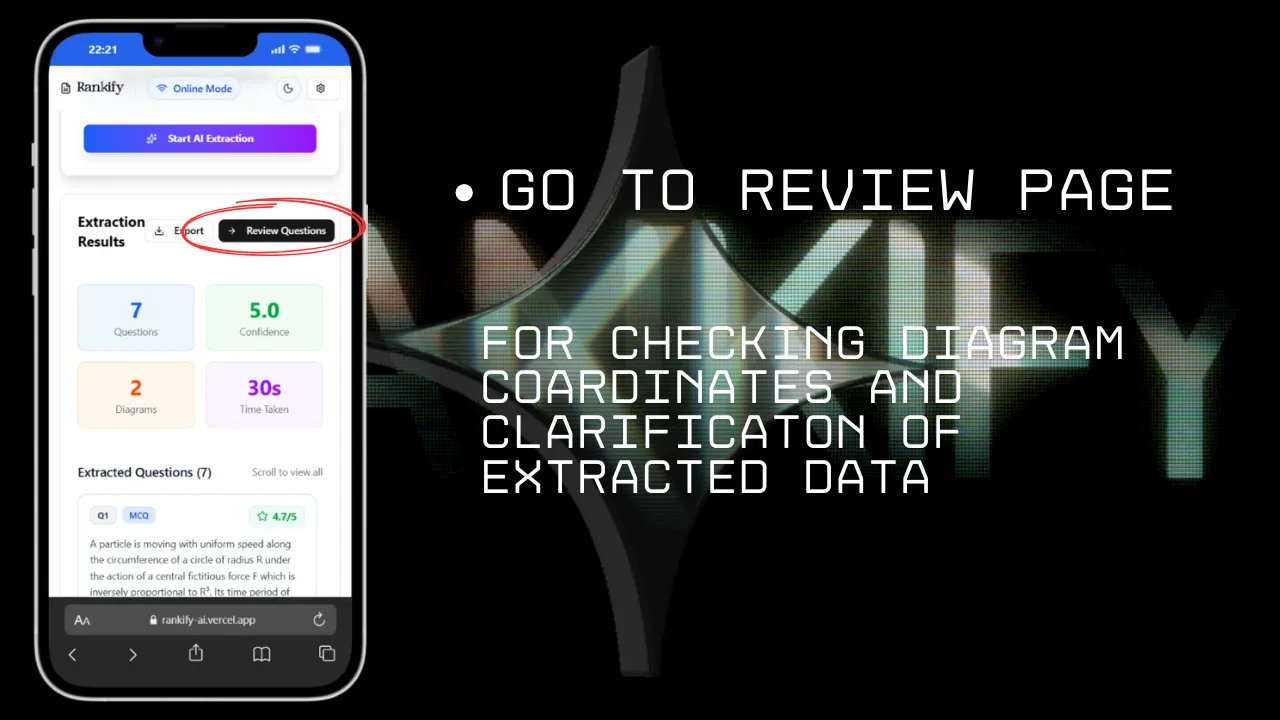
Review Extraction Results
View the extracted questions with confidence scores and statistics.
Results Overview:
- Total Questions: Number of questions extracted
- Confidence Score: Overall extraction quality (1-5 scale)
- Diagrams Detected: Questions with visual elements
- Need Review: Questions requiring manual verification
- Confidence Distribution: Visual breakdown by confidence level
- Questions Preview: First 10 questions with details
Review & Edit Questions
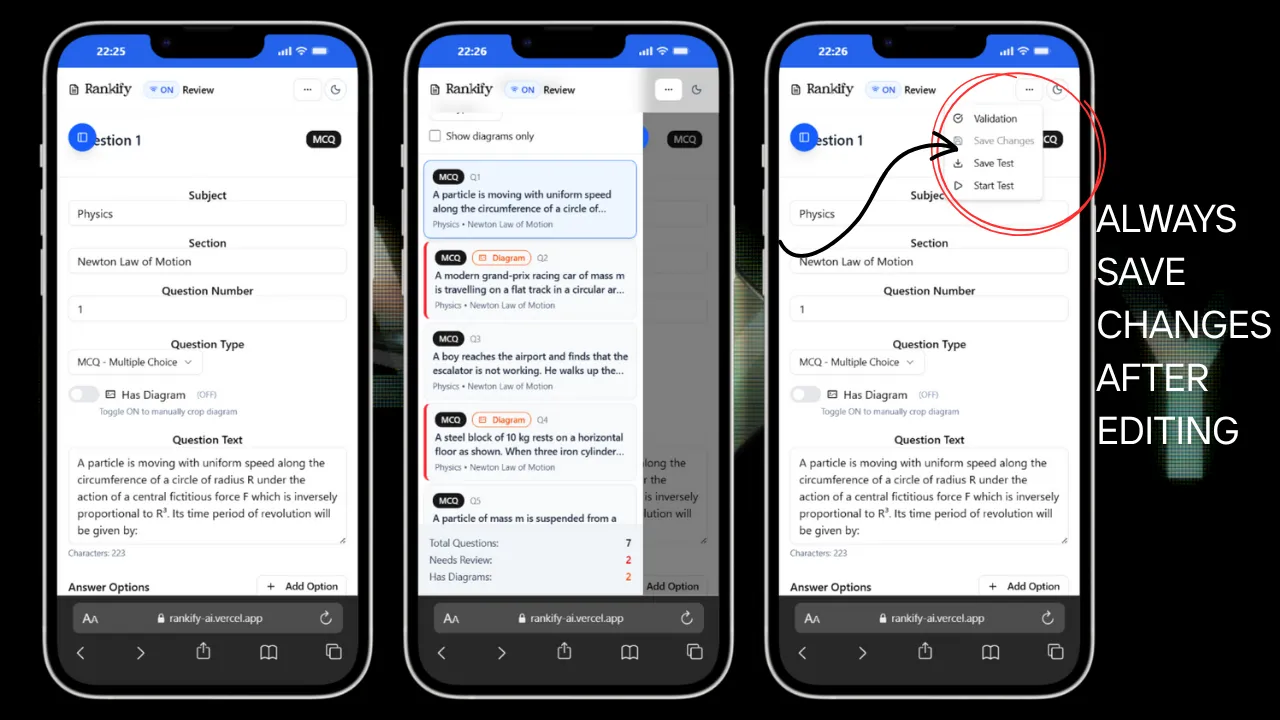
Review the extracted questions and make any necessary corrections.
Review Interface Features:
- Edit Questions: Modify question text, options, and answers
- Add/Remove Options: Adjust answer choices
- Set Correct Answers: Mark the right answer(s)
- Adjust Marks: Set marks and negative marking
- Diagrams Crop: Rectify diagram cropping as AI is not good at it
Configure Test Settings
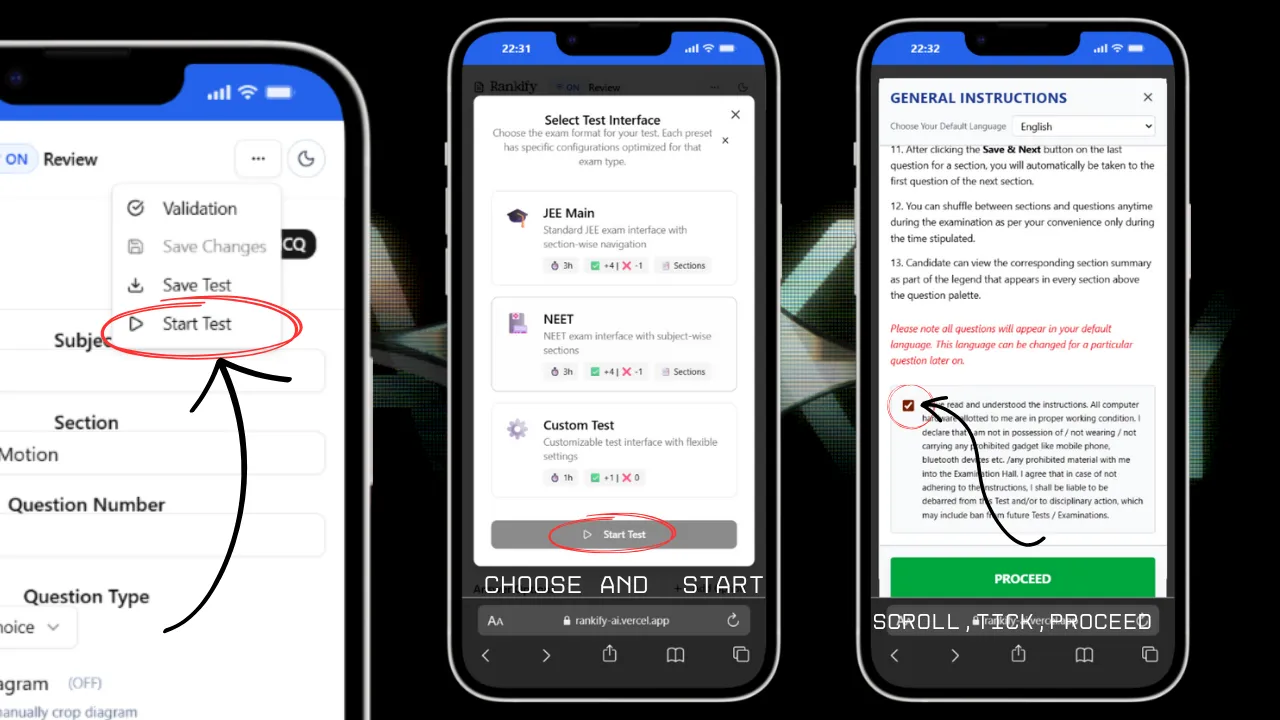
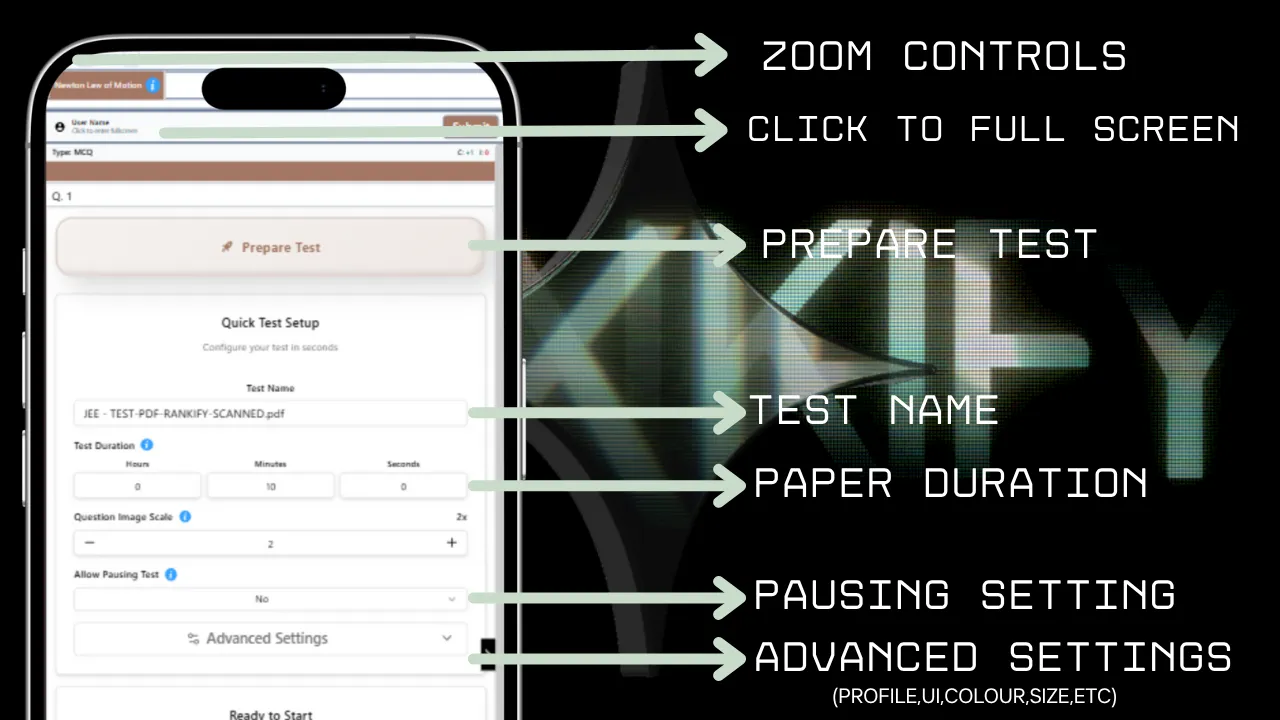
After reviewing, proceed to configure your test parameters.
Test Configuration Options:
- Test Duration: Set time limit (e.g., 60 minutes)
- Question Order: Sequential or randomized
- Marking Scheme: Positive and negative marks
- Colour Theme: Change as per your choice
- Pause/Resume: Enable/disable to add pause functionability
- Preset Templates: JEE, NEET, GATE, or Custom
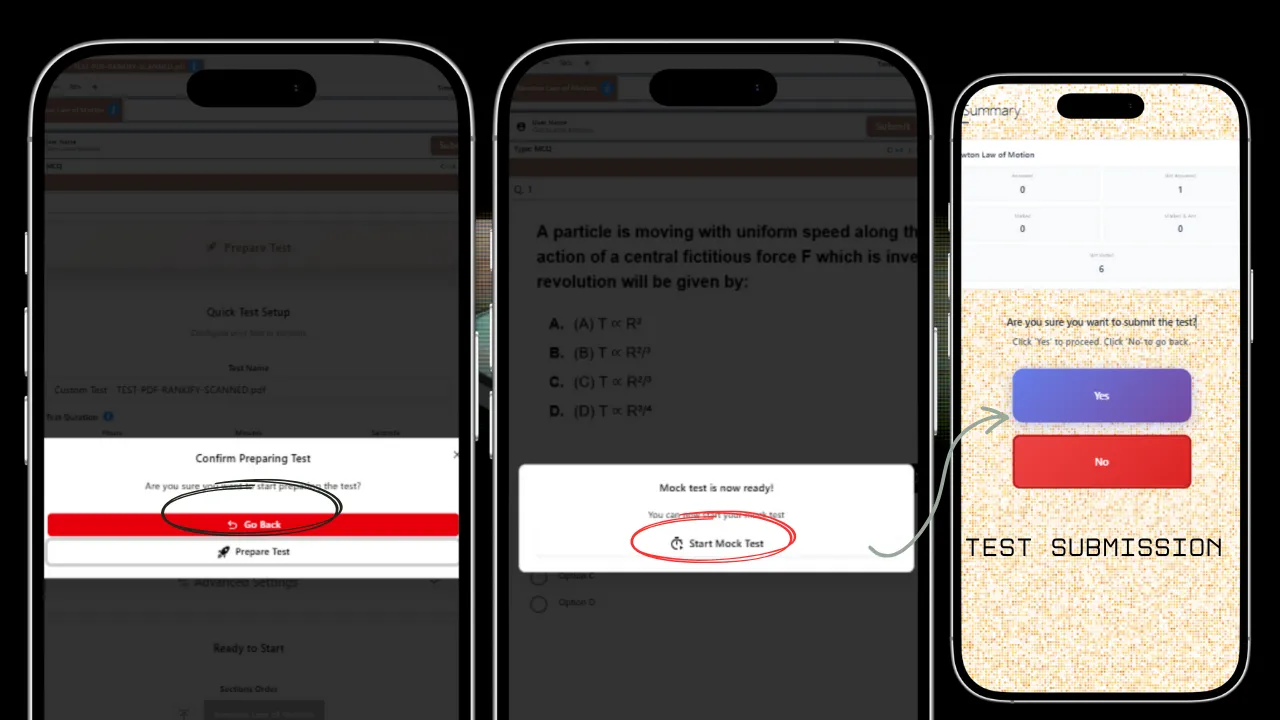
Take the Test
Start your Computer-Based Test with a professional exam interface.
Test Interface Features:
- Timer: Real-time countdown with warnings
- Question Palette: NTA like visual status of all questions
- Navigation: Previous/Next buttons and direct jump
- Mark for Review: Flag questions to revisit
- Question Paper: View original PDF alongside questions
- Auto-Save: Progress saved automatically
- Submit: Review and submit when ready
View Detailed Results
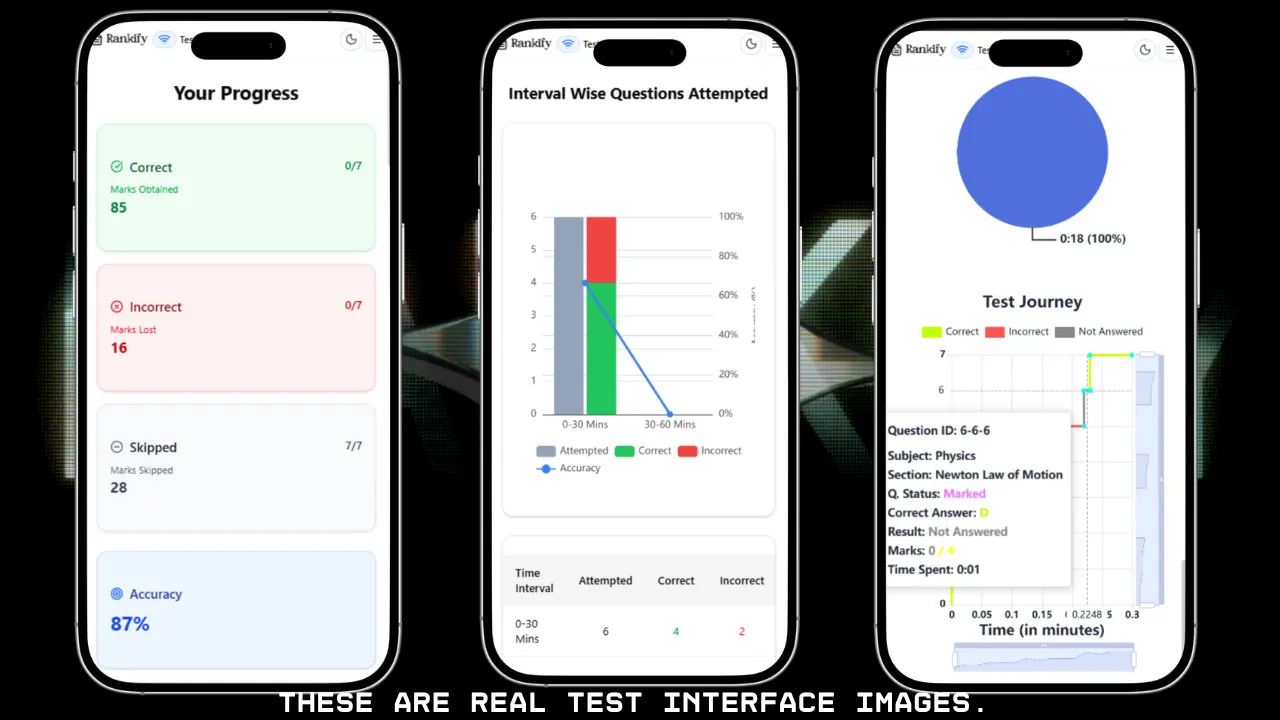
After submission, get comprehensive analytics and insights on your performance.
Results Dashboard:
- Score Summary: Total marks, percentage, and rank
- Time Analysis: Time spent per question and section
- Question-wise Analysis: Correct/incorrect breakdown
- Subject-wise Performance: Scores by subject
- Difficulty Analysis: Performance on easy/medium/hard questions
- Charts & Graphs: Visual performance analytics
- Answer Key: Compare your answers with correct ones
- Export Results: Download as PDF or JSON
Tips & Best Practices
For Best Extraction Results:
- • Use clear, high-quality PDF scans
- • Ensure text is readable and not blurry
- • Rotate pages to correct orientation
- • Use caching for repeated extractions
Performance Tips:
- • Small PDFs (<10MB) extract faster
- • Enable caching for 90% cost savings
- • Review Diagram questions carefully
- • Use Gemini 2.5-flash-lite for speed
- • Use Groq for fastest and clear PDFs
Security & Privacy:
- • API keys are stored locally only
- • PDFs processed securely via Gemini
- • Files auto-delete after 48 hours
- • No data shared with third parties
- • All processing happens client-side
Need Help?
- • Check confidence scores for quality
- • Review flagged questions manually
- • Use preset templates for common exams
- • Contact Me on Github support for issues
Made with ❤️ by a Student